


Supporting production by creators using remote shooting and RAW development

Imaging Edge Desktop
Key features of Imaging Edge Desktop™
Viewer
View, rate, and apply batch edits made in Edit to RAW and other images
Edit
High-quality, versatile RAW development functions that work with your camera
How to use, supported devices, etc.
Feature 1
RemoteRemote (tether) shooting function using live view
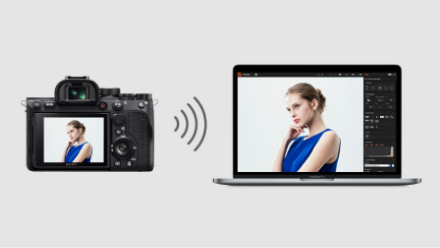
Wired (USB / LAN) and wireless (Wi-Fi) connections
In addition to wired connection with USB / LAN, remote (tether) shooting* with a wireless (Wi-Fi) connection is also supported. Composite RAW Shooting is also available on some supported cameras. Particularly with Pixel Shift Multi Shooting, remote shooting allows high-precision photography with minimal camera shake.
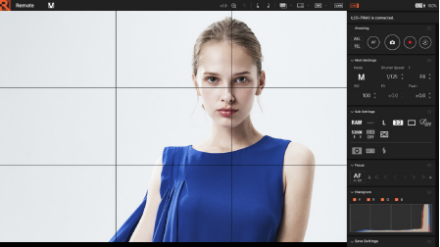
Composition adjustment (grid, guide, live view)
You can fine-tune your composition using a grid, guide, and overlay display.
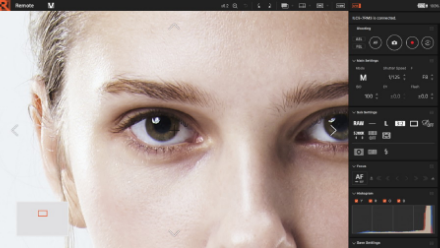
Focus adjustment (area specification focus, magnified display)
You can perform precise focus adjustment efficiently by using area specification focus, display magnification and fine-tuning with manual focus.
Colour and tone adjustments
You can remotely change Creative Look, white balance, and other settings, with changes instantly updated on the camera and reflected in live view.
Feature 2
ViewerBrowse or rate RAW images and apply batch edits made with Edit.
You can browse and check captured images in three display formats
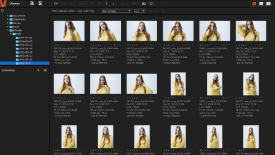 Thumbnail display
 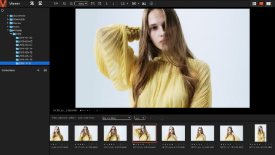 Preview display
 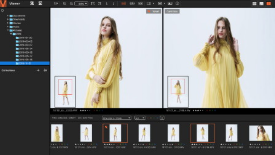 Comparison display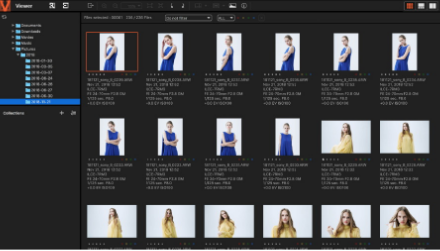
Efficient image selection in conjunction with Remote and Edit
1. Links with Remote to instantly display shooting results. The captured images can then be immediately checked using grids and guides.
2. RAW, JPEG and other image data are displayed in a list. RAW images can be viewed preserving the colours and tones at the time of capture.
3. Colour labels and ratings can be used to select images for RAW development.
4. Rating information can be output in XMP (Adobe compatible) format.
Extended RAW Processing and Composite RAW Shooting to produce high-quality RAW images
You can perform Extended RAW Processing and Composite RAW compositing on images taken with compatible cameras. Batch output of multiple images is also supported.
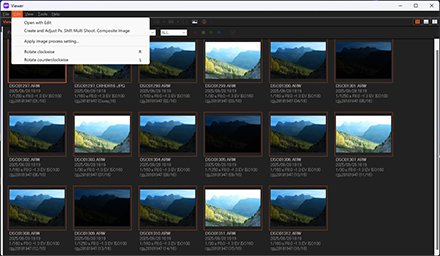
Batch processing of RAW images
Batch processing can be applied in the output of TIFF/JPEG images and incorporation of adjustments made in Edit.
Feature 3
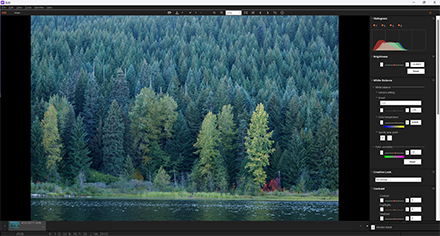
EditSupports high-quality RAW development work in conjunction with your camera.
Settings can be changed even after shooting to adjust the final appearance
The camera's display settings for Creative Look, white balance, D-Range Optimizer (Lv 1 - 8), and lens correction can be changed even after shooting. This allows you to create colours and tones that would have been obtained if the image had been shot with those settings. This way, erroneous settings can be corrected and comparisons made to obtain the best results.
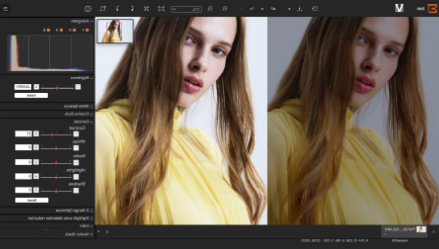
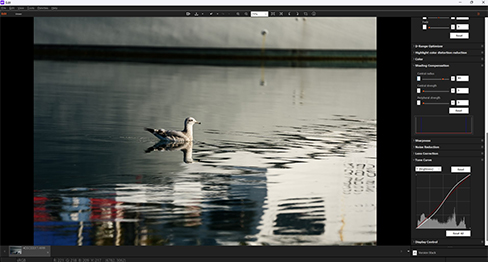
Variety of RAW development adjustment functions
1. You can adjust image qualities such as brightness, hue and white balance.
2. You can adjust the image quality of .ARQ-format images generated by Pixel Shift Multi Shooting and develop them into TIFF, JPEG, or other formats (uncompressed and lossless compressed formats are supported).
3. You can adjust the image quality of materials generated in .AXR format by Composite RAW Shooting or Extended RAW Processing, and develop them into formats such as TIFF or JPEG.
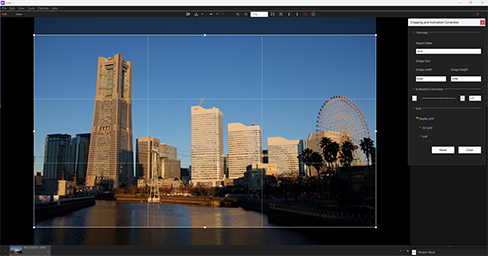
Cropping and Inclination Correction
You can crop and tilt-correct RAW images without degrading image quality. Corrections can be undone, allowing you to safely experiment with composition and tilt correction.
Creative works using Imaging Edge Desktop
Extended RAW Processing offering refined RAW development
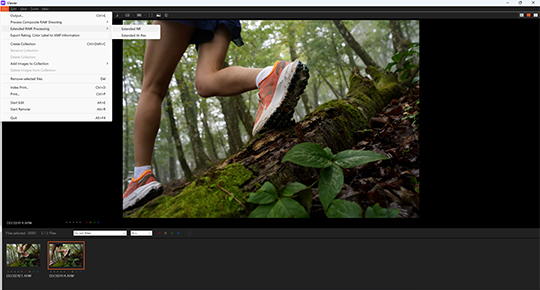
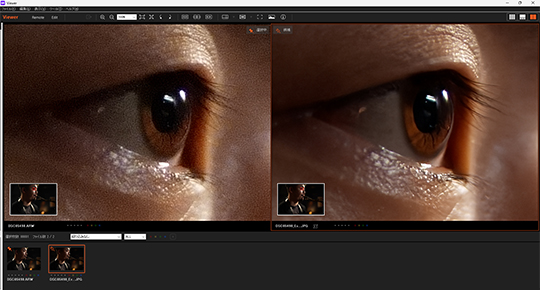
Imaging Edge Desktop's Extended RAW Processing function applies deep learning technology to process captured RAW images, generating high-quality RAW or JPEG files with less false colours, jaggies, and noise than regular RAW/JPEG files. Since it processes a single RAW image, it works not only for standard single-shot photography like landscapes and portraits, but also for sports photography using continuous shooting modes. Two processing modes can be selected: [Extended NR], which produces significantly less noise than regular RAW development, and [Extended Hi-Res], which produces 4x the pixels and 2x the resolution. In [Extended Hi-Res] mode, noise reduction processing is also applied simultaneously with the increase in pixel count and resolution.
- Supported cameras: α1 II, α9 III, α7R VI, α7 V
Composite RAW Shooting*1*3
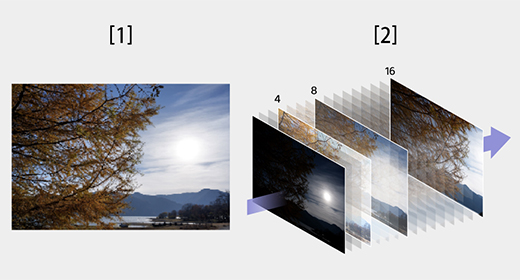
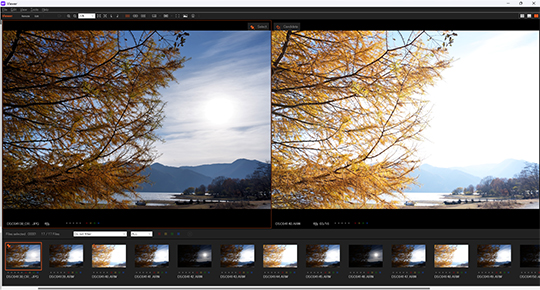
Composite RAW Shooting automatically captures multiple RAW images that can then be composited*1 on a PC using Imaging Edge Desktop. Two settings are provided: [NR Shooting] and [Shooting for HDR]. [NR Shooting] produces high-quality images with low noise while maintaining high resolution, even at medium to high ISO settings. [Shooting for HDR] produces images with a wide dynamic range not achievable in normal shooting. A single shutter press captures multiple images (set in advance to 4, 8, 16, or 32 frames*4) at speeds of up to approximately 30 fps*2. This high-speed shooting allows for handheld operation with the same ease as capturing a single frame. (1) Standard (2) Composite RAW
- Supported cameras: α1 II, α9 III, α7R VI, α7 V
- Depending on the shooting settings, it may not be possible to shoot with the level of dynamic range specified in [D-Range] in the menu.
- The lowest allowable shutter speed for Composite RAW is 1/30 second. The flash mode is fixed at Off and some functions such as Pre-Capture and Continuous Shooting Speed Boost are not available.
- The number of frames that can be shot depends on the camera.
Pixel Shift Multi Shooting
During Pixel Shift Multi Shooting, the camera captures four RAW images while shifting the image sensor. You can generate images with a higher resolution than is possible with regular shooting by combining the four RAW images on a PC. This is helpful when shooting still subjects, such as works of art and buildings. In addition, when combined with a supported model, the camera can capture 16 RAW images to achieve ultrahigh-resolution shooting with information equivalent to 1072 million pixels (approx. 67 million pixels x 16).
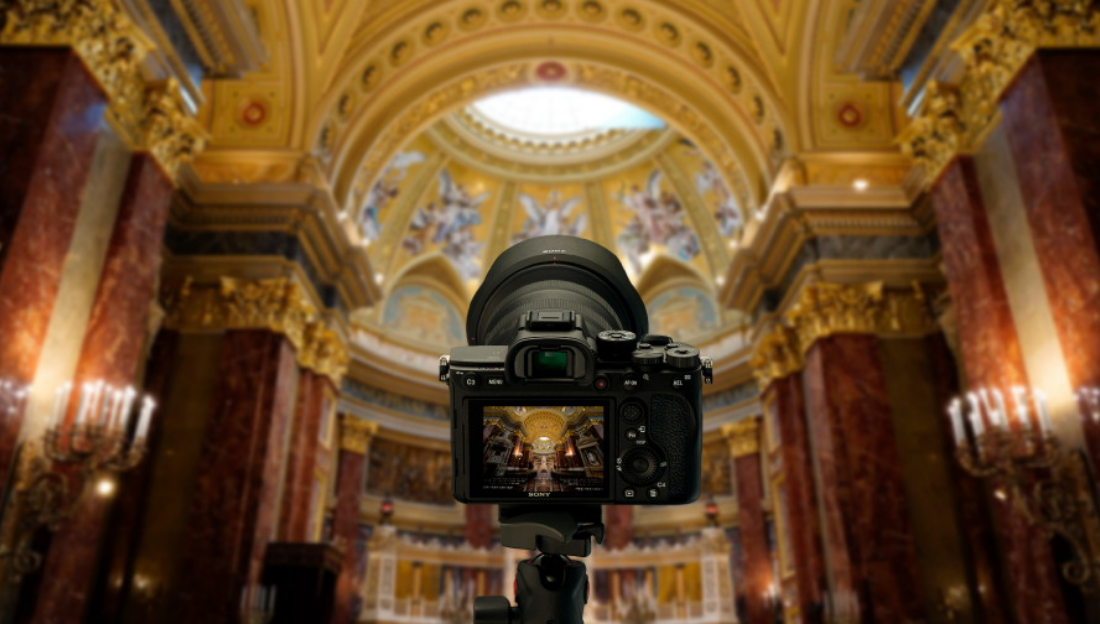
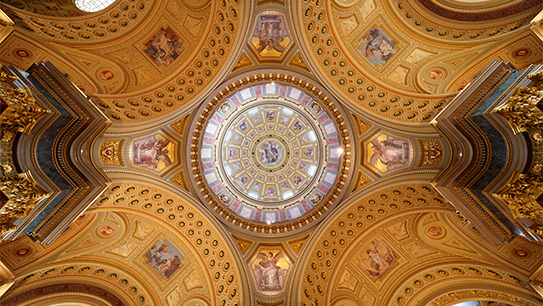
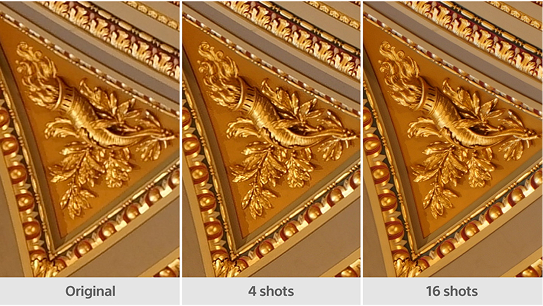
For a list of cameras supporting each function, please see here.
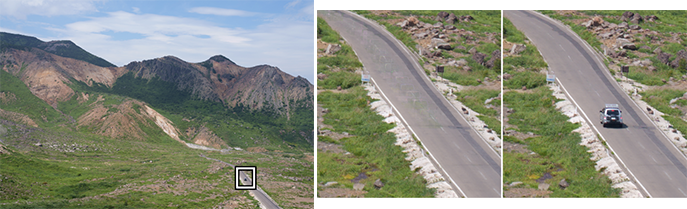
Motion correction for Pixel Shift Multi Shooting
For images containing a moving object, you can enable motion correction so that the app recognises the moving object and creates a composite image appropriately. This function thus expands the range of Pixel Shift Multi Shooting usage to include landscapes and other scenes.
Create time-lapse movies
Supporting production by creators using remote shooting and RAW development
How to use, Supported devices, etc.